Emailclient-Expert

  • Subscribe to our RSS feed.
  • Twitter
  • StumbleUpon
  • Reddit
  • Facebook
  • Digg

Wednesday, 5 January 2011

How to Export and Import Email Messages in Windows Live Mail

Posted on 06:30 by Unknown


Information
This article will show you how to export (backup) and import (restore) all or select message folders that contain your email messages in Windows Live Mail.

This can be done on Windows XP, Vista and Windows 7.


OPTION ONE

Export or Backup Email Messages in Windows Live Mail

1. Create a New Folder on your desktop, and name it what you like.

NOTE:
This is the folder that you will be exporting your message folders that contain your email messages into.

2. Open Windows Live Mail.

3. Click on the Tools icon drop down arrow, select Export email, and click on Email messages. (see screenshot below)


4. Select Microsoft Windows Live Mail, and click on Next. (see screenshot below)


5. Click on the Browse button. (see screenshot below)


6. Navigate to and select the New Folder that you created in step 1, then click on OK. (see screenshot below)


7. Click on the Next button. (see screenshot below)


8. To Export All Message Folders from All Email Accounts

A) Select All folders, and click on Next. (see screenshot below)


B) Go to step 10.

9. To Export Selected Message Folders from Selected Email Accounts

A) Select (dot) Selected folders, press and hold the CTRL key and select (left click on) the random message folders that you want to export, release the CTRL key, then click on Next. (see screenshot below)
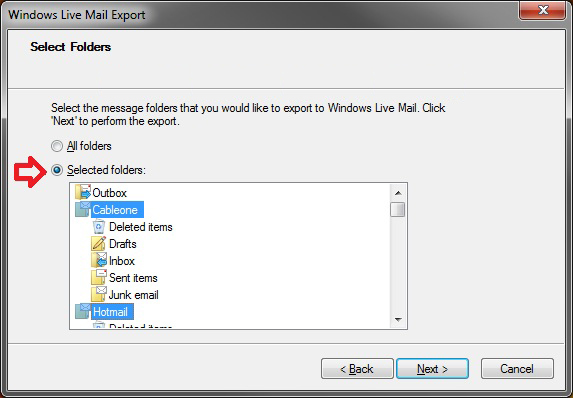


10. Click on the Finish button. (see screenshot below)


11. The selected message folders have now been exported into the New Folder from step 1. Save the New Folder to a safe location. This is the folder that is needed to be able to import or restore your messages in OPTION TWO below.


OPTION TWO

Import or Restore Email Messages in Windows Live Mail

1. Open Windows Live Mail.

2. Click on the Tools icon drop down arrow, and click on Import messages. (see screen shot below)


3. Select Windows Live Mail, and click on Next. (see screenshot below)


4. Click on the Browse button. (see screenshot below)


5. Navigate to and select the New Folder from OPTION ONE that contains your exported message folders, then click on OK. (see screenshot below)
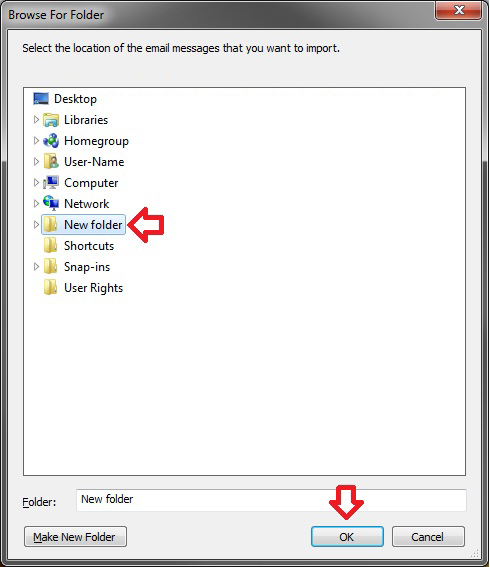


6. Click on the Next button. (see screenshot below)


7. To Import All Message Folders

A) Select (dot) All folders, and click on Next. (see screenshot below)


B) Go to step 9.

8. To Import Selected Message Folders

A) Select (dot) Selected folders, press and hold the CTRL key and select (left click on) the random message folders that you want to import, release the CTRL key, then click on Next. (see screenshot below)


9. Click on the Finish button. (see screenshot below)


10. At the bottom of left pane of Windows Live Mail, expand Storage folders and Imported Folder. Your imported messages folders from step 7 or 8 will be sub folders in Imported Folder. You can open each imported message folder to see your imported email messages, or move them to any other folder.


Tip
If you do not see Storage folders, then you can click on the View tab and click on the Storage folders toolbar item to highlight it and have it available now. (see screenshot below)


This can be done on Windows XP, Vista and Windows 7. 
Read More
Posted in Email client support, How to's in Microsoft outlook, Known Issues in Outlook, Microsoft office, Microsoft Outlook, Technical support, Work offline | No comments

Tuesday, 4 January 2011

What is an .OST file?

Posted on 14:30 by Unknown
What is an .OST file?


As all users of Microsoft Exchange Server are aware, they can either work with their mailbox on the server in the online mode or the cached mode. The biggest advantage of working in the cached mode is that it allows users to continue working with data from the mailbox as though they were still connected to the server even though they may be offline. Outlook creates an offline storage file, OST file and then copies the content of the mailbox on the server into this file. Mobile users can then access this copy of the mailbox offline. To take full advantage of this feature, users should know about the different configurations of the Cached mode setting.

Though you can set the various configurations for Outlook manually, if you are a system administrator looking after an entire Exchange organization, you would be better off if you just applied the settings at the group policy level. The OST group policy settings can be located by first going to the main User Configuration menu and then looking at the Administrative Templates. From Microsoft Office Outlook 2007, select Tools and then Account Settings, from where you can click on Exchange. While there may be other options, you should look at the group policy setting for the OST files. Before making changes, you should be aware that some of the changes could cause serious damage to OST files and that there should be a backup option to quickly recover OST data.
.OST files are a product of Microsoft Outlook, and contain your offline e-mail data.

Working offline means you have access to your data in situations where a connection to your e-mail server cannot be established. To make this possible, your data must be saved locally on your workstation.

.OST files are a format used by Microsoft Outlook to save your offline data on your workstation. The next time you have a connection and Outlook can communicate with the e-mail server, your data from the .OST file can be synchronized with what’s on the server.

An OST file (.OST) is an offline folder file in Microsoft Outlook. Offline folders make it possible for the user to work offline and then to synchronize changes with the Exchange server the next time they connect. The ability to work offline is useful in environments with limited or unreliable connectivity.
Read More
Posted in .OST File, Email Support, OST File, PC Support, Technical support, TechSupp247 | No comments

How to See Messages in Conversation or List View in Windows Live Mail 2011

Posted on 06:30 by Unknown


Information
This will show you how to turn conversations on or off to see your messages in conversation (on) or list (off) view in Windows Live Mail 2011.

This article can be used for Windows XP, Vista and Windows 7.

EXAMPLE:
Conversation and List View


Here's How:

1. In Windows Live Mail 2011, click on the View tab, then click on the Conversations ribbon button. (see screenshot below)


2. To Have Conversation View

A) In the Conversations drop down menu, click on On.

NOTE:
This is the default setting.

3. To Have List View

A) In the Conversations drop down menu, click on Off.

This article can be used for Windows XP, Vista and Windows 7.

Read More
Posted in Email client support, How to's in Microsoft outlook, Known Issues in Outlook, Microsoft office, Microsoft Outlook, Technical support, Work offline | No comments

Monday, 3 January 2011

Outlook: Work Offline Issue

Posted on 16:00 by Unknown


             Outlook is showing that it is working Offline. Strangely, sometimes messages still do come in. Why is this and how can you properly set it back Online and reconnect to the server again?

There appears to be some recurring confusion about whether or not Outlook is in Offline Mode. This article is about how to verify whether or not you truly are in Offline Mode and how to reconnect. When you continue to have issues connecting start with; Send/Receive errors.

Work Offline icon and Status bar

The main confusion is about Work Offline icon which is being displayed on the Send/Receive tab in the Ribbon in Outlook 2010; you’ll find a globe with a red cross in front of it. This doesn’t mean you are in Offline Mode as the icon is always like this. The icon doesn’t change to for instance a globe without a red cross when you are Online.


 When you actually are in Offline Mode, the icon will show highlighted and your Status Bar will also show “Working Offline”. Clicking on the icon then will bring you back to Online Mode.


In Outlook 2007 and previous, there will be a tick mark in front of the Work Offline option in the File menu.


This usually happens with IMAP accounts when server time-outs have occurred. In that case, there will also be another icon visible on the Send/Receive tab called “Connect to Server”. When you click on this button, Outlook will attempt to reconnect again and when successful, the icon will be gone again and the “Disconnected” warning will be gone from the Status Bar.


These steps can be followed in Windows XP and Windows 7
Read More
Posted in Email client support, How to's in Microsoft outlook, Known Issues in Outlook, Microsoft office, Microsoft Outlook, Technical support, Work offline | No comments

Outlook: Unread mail count on Windows XP logon screen

Posted on 14:30 by Unknown


    you see an Outlook Unread Mail count on the logon screen of WIndows XP. This would be handy if it would indeed display the correct amount of unread items. Is there a way you can correct this count or can you simply disable it otherwise?

The
Outlook Unread Mail count on the log on screen of Windows XP is the combined number of unread items for all accounts or mail applications that expose their unread count. Aside from Outlook, this can also be for instance Outlook Express or Windows Live Messenger.


If you want to fix the unread item count, then you can do so by removing the accounts you no longer use from the registry. A guide on how to do that can be found here.

If you want to disable the feature altogether, then you can do that via the registry;

Note: Before you do changes to registry please take a backup.

Key (current user only): HKEY_CURRENT_USER\Software\Microsoft\Windows\CurrentVersion\UnreadMail
Key (all users): HKEY_LOCAL_MACHINE\SOFTWARE\Microsoft\Windows\CurrentVersion\UnreadMail
Value name: MessageExpiryDays
Value: 0

If this value name is missing, the default is assumed which is 3 (days).

Read More
Posted in Email client support, How to's in Microsoft outlook, Known Issues in Outlook 2007, Microsoft office, Microsoft Outlook, Technical support, Unread mail count | No comments

Known Issue: Reminder for Out of Office feature.

Posted on 11:00 by Unknown


             Is there any way in Outlook 2007 to get reminded more visually that my Out of Office is still on? Unfortunately there isn’t. The only notification that Outlook 2007 has, is the (temporary) balloon pop-up in the bottom and the (permanent) status bar notification.


   Another way to go would be to create a recurring Task which reminds you to check the Out Of office status each morning (or whenever you start working ;-) . To create a recurring task choose; File-> New-> Task and in the Task window press the Recurrence button on the Ribbon. When the reminder pops-up in the morning, make sure you mark it as complete (right click on the task in the Reminder Window) instead of pressing the Dismiss button. This will make sure that there will be a new task generated for the next recurrence.

Of course this is just a workaround. The Outlook team has heard your feedback though and in Outlook 2010, there will be a large red strip reminding you that the
Out Of office is still turned on.


It works in same way for outlook installed in Windows XP and Windows 7
Read More
Posted in Email client support, How to's in Microsoft outlook, Known Issues in Outlook 2007, Microsoft office, Microsoft Outlook, Out of Office, Technical support | No comments

Icons displayed for configured rules in Outlook

Posted on 06:30 by Unknown


          Looking at the symbols of rules, you see several rules which have the hammer and wrench icon while others don’t.What is the meaning of this icon and the other icons you see in the Rules and Alerts dialog?

Some actions have a unique symbol to indicate the action that is configured for the rule. For all other actions, the the hammer and wrench icon will be displayed.

-  New Item Alert icon     
   This icon Displays the New Item Alert window rule.

-  Play a sounds     
   This icon displays the Play a sound rule

-  Move to folder     
   This icon displays the Move to a specific folder rule

- Copy to folder     
         This icon shows the copy to a specific folder rule.

-  High importance
    This icon displays the "Mark it as high importance" rule.

-  Low importance
    This icon shows the "Mark it as low importance" rule.

- Normal importance     
    This icon displays the "Mark it as normal importance" rule.

- Flag     
    This icon displays the "Flag message for Follow Up" rule.

- Delete     
    This icon shows the "Delete it" (but not the "permanently delete it action") rule

- Other     
     This icon is used for all other actions or rules

This works in same way for outlook on Windows Xp and Windows 7.
Read More
Posted in Email client support, Flagging feature, flags icon, How to's in Microsoft outlook, Microsoft office, Microsoft Outlook, Technical support | No comments
Newer Posts Older Posts Home
Subscribe to: Posts (Atom)

Popular Posts

  • Smart Notifiers in IncrediMail
           T he butler's serving mail, of course, iconically in IncrediMail. Is all mail fit for the butler, though, and all fit mail equal?...
  • How to Filter IMAP Automatically: Spam Bully
                 M ail coming to your "normal" Outlook Express Inbox via a POP account is automatically filtered by Spam Bully. But wh...
  • Make SpamAssassin Mark Spam in the Subject
                   B y default, SpamAssassin does not alter the Subject line of detected spam. This default setting is also the right one, I thi...
  • Sharp Reader : Add-on
           S harpReader is a great RSS feed reader that knows how to organize news and blogs in their logical order to make following them easy ...
  • Adding contact to Mailing list
                 I t's easy to add address book members to a mailing list in Outlook Express, but adding recipients to a mailing list withou...
  • Filtering Foreign Language Spam
                     N ot everything I don't understand is spam. Most of the things don't understand are not. But when the majority of t...
  • Top 10 Keyboard shortcuts to ease your toggling in 2007
    Top 10 Keyboard shortcuts for  outlook 2007:   That’s quite a few to remember, and this should get you to a good start. Ten more useful keyb...
  • Block email from domains: Live mail
                     W indows Live Mail make it easy to block messages from a particular email address. If you are looking for a broader approac...
  • Whitelist a Domain in SpamAssassin
              U sing its comprehensive set of rules and Bayesian analysis, SpamAssassin catches an impressive amount of spam with hardly any fa...
  • Whitelist a Domain in MailWasher Pro
                    T he various filtering techniques in MailWasher Pro are pretty effective.unfortunately, they can get too effective and catch...

Categories

  • .OST File
  • Account selection
  • account settings
  • Account type
  • Add on
  • Add-in's
  • Add-ons
  • adding address automatically
  • Adding Animation to Signature
  • Adding attachment
  • adding background to email
  • Adding Bcc option
  • adding contacts from TO Line
  • Adding Email Address to junk mail
  • Adding image to signature
  • Adding link
  • Adding multiple contacts
  • adding music to mail
  • Adding new member to mailing list
  • adding note to message
  • Adding picture
  • adding replied contacts to address book
  • Adding search location
  • adding sender to blocked list
  • Adding Signature
  • Adding signature automatically
  • Adding voice message
  • Address Book
  • address book option
  • Allow blocked attachments to open
  • Animations
  • Arranging mails
  • Attach file
  • Attachemnt size
  • Attachments
  • Attachments issue
  • Auto archive
  • Auto delete
  • Auto empty trash folder
  • Auto fill address
  • Auto resize picture
  • Autocorrect entry
  • Autocorrection
  • Automatic
  • Automatic spell check
  • avoid split attachment
  • Avoiding incorrect receipent
  • Back up
  • Back up large PST
  • Backup
  • Backup Address book
  • Backup all email data
  • Backup email filters
  • Backup filter
  • Backup Gmail to Thunderbird
  • Backup Indivisual Mails
  • Backup mails
  • Backup ribbon settings
  • Basic fix
  • Bcc contacts
  • Bcc option
  • BeInSynch
  • Blank calender
  • Block Email Address
  • Block emails
  • block emails from domain
  • Block remote images from loading
  • Blocked senders
  • Boss watch feature
  • Bule arrow on folders
  • Categorizing Notes
  • Categorizing Notes on outlook 2007
  • change default fonts
  • change font in Navigation pane
  • Change search result color
  • change startup folder
  • Changing
  • changing email view
  • Changing new mail notification sound
  • Changing scheduled meeting request
  • Changing sent mail folder
  • city ville
  • city ville tricks
  • cityville
  • clean installation
  • coins and cash
  • Color code emails
  • Color conditional Formatting
  • Colors
  • Compact Mode
  • Compress PST
  • Compressing mailbox
  • conditional search result
  • contacts
  • Conversation management tool
  • Conversation view
  • Copey mails to One note
  • Create
  • Create signature
  • Creating backup copy
  • Creating distribution list
  • creating Email Account
  • Creating email filter
  • creating email folder
  • Creating email templete
  • creating folders
  • creating mailling list
  • Creating massage filter in Thunderbird
  • creating meeting request.
  • Creating new PST
  • creating rich text signature
  • Creating rules in Outlook 2007
  • Creating signature
  • Creating Vcard
  • Custom column view
  • Custom Quick steps
  • Customizing office installation
  • Customizing Quick steps
  • Default email account
  • default formatting
  • Default signature
  • default start up folder
  • defining Send/Receive Groups
  • delay delivery of mail
  • Delete address from auto complete list
  • Delete Duplicates
  • Delete massage without opening email
  • Deleted items
  • Deleting Attachements
  • Deleting emails
  • Deleting emails permanently
  • Deleting Old Mail's
  • desktop notification
  • Different sounds for different senders
  • Disable Auto archive
  • disable Auto complete
  • Disable background music
  • Disable capitalization
  • Disable conversation
  • Disable grouping
  • Disable image display
  • Disable launch at startup
  • Disable mail download at strtup
  • Disable read receipts
  • Disable reply all
  • Disable responce request.
  • Disable response
  • Disable Spam detection temporarily
  • disable splash sreen
  • disabling
  • Disabling Moodwatch
  • Disabling preview pane
  • Disabling send progess window
  • Disabling typing sound
  • download
  • Drag n Drop attachments
  • DSPS
  • editing
  • Editing Keywords
  • editing user dictionary
  • Email account on outlook
  • Email background
  • Email client support
  • Email Client Texpert
  • Email Client Utilities
  • email downloading
  • Email management
  • Email managers
  • Email notification
  • email option
  • Email options
  • Email options. New mail from Command line
  • email priority
  • Email security
  • email signature
  • Email source
  • Email Support
  • email symbols
  • Email Template
  • enable
  • Enable auto reply
  • Enable Automatic spell check
  • enable hiden headers
  • Enable hotkey shortcuts
  • Enable remember password
  • enable/disable
  • enabling auto address completing
  • Enale or disable new mail sound
  • Encrypted Email
  • energy
  • Enfish
  • Eudora
  • Eudora Email Client
  • Eudora Mail Features
  • Eudora manager
  • Eudora Support
  • Exclude account from auto mail check
  • Exporting address book
  • Exporting calender
  • Facebook
  • falgs and categories
  • FAQ's
  • farmville
  • Features in Live mail
  • Features of Eudora Mail
  • filter junk mails
  • Filtering all mails containing attachments
  • Filters
  • finding store folder
  • Flag details
  • flag message with reminder
  • Flagging feature
  • Flags
  • flags icon
  • Folder full issue
  • Fonts
  • Fonts style
  • format
  • Format painting
  • formatting
  • Forward botton missing
  • forward icon missing
  • forwarded mails
  • Forwarding emails as attachment
  • Free
  • Frequently asked quetions
  • Gmail Support
  • guides
  • hand-written signature
  • Helpful tips
  • Helpful Tips
  • Hide
  • Highlight sender mail with color
  • Highlighting mail's from same person
  • Hotkey for attachment
  • How to's in Outlook Express
  • How to Backup and Restore Data on outlook
  • How to Backup and Restore profiles
  • How to fix
  • How to Import Export Massage rules
  • How to in Microsoft outlook
  • How to increase XP in cityville
  • How to print your Outlook Express Address Book
  • How to secure outlook PST
  • How to setup Email account
  • How to's
  • How to's in Live Mail
  • How to's in Microsoft outlook
  • How to's in Microsoft outlook 2007
  • How to's in Microsoft outlook 2010
  • How to's in Mozilla Thunderbird
  • Huge attachments
  • Huge attachments waring
  • Hyperlinks disabled
  • IMAP account
  • IMAP performace
  • Import .pst
  • Import calender fron Facebook
  • import calenders
  • Import contacts
  • Importing address book
  • importing contacts
  • Inbox clean up
  • Inbox view
  • including Bcc field
  • increasing
  • increasing text size
  • IncrediConvert
  • incredimail
  • Incredimail Backup PRO
  • IncrediMail features
  • incredimail support
  • Inline picture display
  • Insert the Last Used Smiley Fast
  • Inserting a snapshot in Outlook 2010
  • inserting BCC field
  • Installing Different language spell check
  • installing letters
  • Intalling diffrent features of outlook
  • Intel
  • Issues on Macros and Security warning
  • Issues with starting Mozilla ThunderBird
  • journal
  • Junk filter
  • Junk Mail Box
  • Keyboard shortcuts
  • Known Issues in Outlook
  • Known Issues in Outlook 2003
  • Known Issues in Outlook 2007
  • Known Issues in ThunderBird
  • Known Issues in Windows live mail
  • Latest news
  • Latest news on Microsoft
  • Latest release for ThunderBird
  • Latest release of GPU
  • latest Technology
  • Latest Technology News
  • Leave a copy on server
  • Logging sent and receiving mails
  • Look up a Word Definition
  • Macros and Security warnings
  • Mail box
  • Mail box size
  • Mail priority
  • mails stuck in outbox
  • Maintaning meeting request
  • Make calender private.
  • Making mails private
  • Managing calendar
  • Managing Contacts
  • Managing flagging
  • Managing Thunder bird
  • Manually record
  • meeting request
  • Message Headers
  • Message size increasing
  • microsoft
  • Microsoft office
  • Microsoft Outlook
  • Microsoft outlook 2003
  • Microsoft Outlook 2007
  • Microsoft Outlook 2010
  • minimize to Taskbar
  • Move mails to One Note
  • Mozilla Thunderbird
  • Mozilla Thunderbird Addon's
  • Mozilla ThunderBird Email client Support
  • Mozilla ThunderBird support
  • Mozilla ThunderBird Support
  • Multiple Attachments
  • Multiple signatures for diffrent accounts
  • Music play automatic on message opening
  • Network Solutions
  • New email account in Outlook
  • New feature in Outlook 2007
  • New feature in Outlook 2010
  • new features of outlook 2010
  • new mail alert
  • New To - Do Bar in Outlook 2007
  • News
  • Nvidia
  • Office 2007 Installation Guide
  • Office Installation
  • operating system
  • Optimization
  • organize
  • Organizing IncrediMail
  • os
  • OST File
  • others
  • Out of Office
  • outlook 2007
  • Outlook 2010 Feature's
  • Outlook Calendar
  • Outlook connector add- on
  • Outlook crashes
  • Outlook customization
  • Outlook express
  • Outlook Express Support
  • Outlook feature
  • Outlook features
  • Outlook junk mail feature
  • Outlook meeting request
  • Outlook optimization
  • Outlook settings
  • Outlook slow
  • Outlook Startup
  • outlook support
  • Outlook tips
  • PC Support
  • permanently
  • Previewing mail more securely
  • Print a part of email
  • print address book
  • Print massage issue
  • print part of mail
  • Printing calender
  • printing currently composing email
  • Printing email with background image
  • Problem in Sending and Receiving Emails
  • Problems in downloding new Emails
  • protecting Identities with password
  • protecting your mails
  • Public folder favorites
  • Qick resend option
  • Quick junp to date
  • Quick steps
  • Quick steps feature
  • Quick text
  • Quick way to add Cc
  • Quick way to add emoticons
  • Read mail option
  • Read receipt
  • Reading pane
  • Reasons for safe list mail filtered in Junk box
  • Recent
  • Reminder Bell
  • removing account
  • repair pst
  • Replay or Forward
  • Reply multiple mail's at once
  • Requesting read receipt
  • resending mails
  • reset to default
  • Resizing image.
  • Restore filters
  • Restore massage rules
  • Restore missing folders
  • Ribbon Finder
  • Ristrict attachment download
  • Rules
  • Safe mode
  • Same reply to multiple mails
  • save attachement
  • Save attachment warning
  • Save massage as draft
  • Scoll not working in Outlook
  • screenshot feature
  • search current foler
  • Search email header
  • search locations
  • Security options
  • Sending emails to One Note
  • sending images as inline massage
  • Sending mail to Undisclosed Recipients
  • sending mails
  • sending SMS
  • sent mails folder
  • Set up auto reply
  • Setup of Outlook
  • Show/Hide option
  • Signatures
  • Smart Notifiers in IncrediMail
  • snapshot
  • Sorting notes
  • Sound
  • Sound background
  • sounds
  • space issues
  • Spam filter
  • speed
  • speed up
  • Speed up IMAP
  • Spell check
  • spell check for part of message
  • Spell checker not working
  • startup
  • stop search indexing
  • Store folder
  • Subject line above sender's
  • Switching to Schedule View
  • symbols
  • Sync emails in two computers
  • Tech News
  • tech support
  • Tech Updates
  • Technical support
  • TechnicalSupport
  • TechSupp247
  • Thunderbird features
  • Thunderbird Tips
  • Thunderbolt
  • Tip's for Outlook
  • Tips
  • tips and tricks
  • Tips vedio
  • To - do
  • To-Do bar
  • Today list
  • Todays unread folder
  • Top tips for outlook
  • Top tips to speed up Outlook
  • Tracking meeting request responses
  • Transfer archive mail
  • Troubleshooting known issues
  • Turn off alerts
  • Turn off animations
  • Turn off Notification
  • Turn OFF or ON
  • Turn off welcome sound
  • tweaks
  • Unable to delete mails
  • Unable to open PDF attachment
  • Unblock
  • Unblock images in mail
  • Undisclosed Recipients in IncrediMail
  • Unhide notification icon
  • Unread
  • Unread mail count
  • Updated
  • Utilities
  • View Picture and Massage securely
  • view source
  • voting options
  • Web browser
  • Web Mail
  • Web pages
  • windows 7
  • Windows 7 library issue
  • Windows 7 support
  • windows 7 tips and tricks
  • Windows Live
  • Windows live mail
  • Windows live mail customization
  • Windows live mail feature
  • without software
  • word attachment
  • Work offline
  • Zimbra

Blog Archive

  • ▼  2011 (313)
    • ▼  August (12)
      • Make SpamAssassin Mark Spam in the Subject
      • Whitelist a Domain in SpamAssassin
      • Filtering Foreign Language Spam
      • SpamAssassin : Security Add-on
      • Whitelist a Domain in MailWasher Pro
      • Spam Filter in MailWasher
      • Avoid important mail filtering : MailWasher
      • MailWasher Pro : Security Add-on
      • Disable Filtering Newsletters as Spam
      • How to Filter IMAP Automatically: Spam Bully
      • Organizing Feeds in folders: SharpReader
      • Sharp Reader : Add-on
    • ►  July (22)
    • ►  June (40)
    • ►  May (13)
    • ►  April (49)
    • ►  March (58)
    • ►  February (61)
    • ►  January (58)
  • ►  2010 (92)
    • ►  December (49)
    • ►  November (23)
    • ►  October (20)
Powered by Blogger.

About Me

Unknown
View my complete profile